
Skip to content
Hi-Arm logo

HIARM-TWIN-01 for robotics classes

From first simulationto live robot‑arm control.

Teleoperate HIARM-TWIN-01 and track targets with vision from one app. With HIARM-TWIN-01 connected, record demonstrations and train models in the same workflow.

No account requiredWindows 10 and 11 · x64
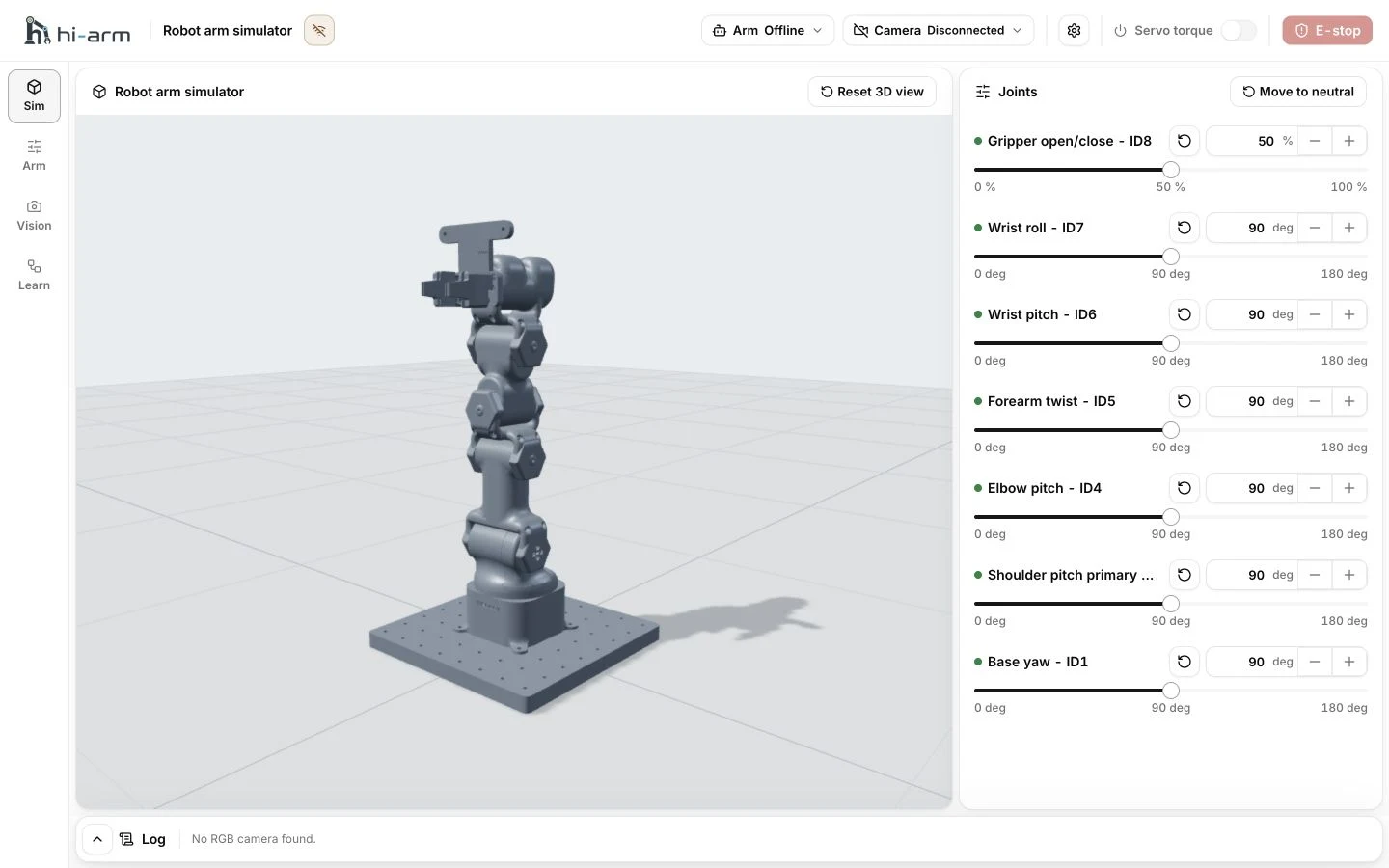
HIARM-TWIN-01 showing a 3D robot arm simulator beside joint controls

One connected robotics workflow

Control, vision, and learning in one flow.

  1. 01

    Teleoperate connected robots

    Control a connected HIARM-TWIN-01 in real time—including leader–follower operation—with connection, alignment, and live feedback visible.

  2. 02

    Track targets with vision

    Use a compatible camera to detect and track robot bases, colored cubes, and configured targets, then connect visual feedback to motion.

  3. 03

    Train models with connected HIARM-TWIN-01

    Connect HIARM-TWIN-01 to record demonstrations, train or import a model, and evaluate learned motions on the robot under supervision.

Teaching tools

The tools to turn motion into an experiment.

Motion control

Control seven axes
The seven-axis arm uses eight motors. Adjust angles, return to a neutral pose, and compare commands with live position feedback.
Create and replay motion sequences
Capture arm poses in order, then replay them as one motion from the calibrated starting position.

Setup and feedback

Calibrate with guided steps
Record centers and ranges, then save profiles for consistent setup across lab computers.
See status and diagnostics
Keep arm, camera, torque, connection, logs, and recovery guidance visible during testing.

Vision and response

Detect and track camera targets
Detect colored cubes or faces, follow a selected target, and reacquire it when tracking is interrupted.
Connect vision to motion
Demonstrate automatic target centering while students watch visual feedback change the arm's movement.

Demonstration and learning

Teach leader-follower control
Show how the leader arm guides the follower while connection and alignment status remain visible.
Learn from demonstrations
Record demonstrations and review video alongside joint data. Train or import a model, then evaluate learned motions on the connected HIARM-TWIN-01 under supervision.

Frequently asked questions.

Clear answers about hardware, simulation, setup, and how classroom data is handled.

What can I do with HIARM-TWIN-01?

Use one app for 3D simulation, teleoperation of a connected HIARM-TWIN-01, camera-based target tracking, voice commands, and status diagnostics. With HIARM-TWIN-01 connected, you can also record demonstrations and train or import models.

Can I use it without connecting a robot?

Yes. Without a physical robot, you can use the 3D simulator to inspect the arm's structure and movement, adjust each joint, and practice poses and motion sequences. Teleoperation, physical motion, demonstration recording, and model training require a connected HIARM-TWIN-01.

Can I validate a trained model in the simulator?

Not currently. The 3D simulator is for exploring robot motion; it does not run or validate trained models. Evaluate learned motion on the connected HIARM-TWIN-01 under close supervision.

What computer does HIARM-TWIN-01 require?

HIARM-TWIN-01 requires a Windows 10 or 11 computer with x64 hardware and the Microsoft Visual C++ 2015–2022 runtime. Model training also requires an NVIDIA graphics card; for smooth training, we recommend an RTX 3060-class GPU or better, at least 16 GB of memory, and 50 GB of free storage.

Do I need to buy a webcam or stay connected to the internet?

Hirobot supplies the webcam used for vision features. An internet connection is needed to download optional voice, cube-detection, and training models and tools.

Do I need an account, and where is classroom data stored?

No account is required. Camera and voice data are processed on the user's computer, and demonstration recordings, datasets, projects, and trained models are stored only on that device. This classroom data is not uploaded to an external server unless the user explicitly exports or shares it. Analytics-enabled releases may send only the limited usage and diagnostic information described in the Privacy Policy.

Read the Privacy Policy
What should teachers check before a lesson?

Clear obstacles from around the robot and confirm that the emergency-stop control is available. Make sure students maintain a safe distance, begin at low speed, and remain under teacher supervision whenever the robot is moving.

HIARM-TWIN-01

DownloadLatest Windows release
Release notes
Microsoft Edge help

In Edge on Windows, “isn’t commonly downloaded” can appear. Continue only if you trust this download.

  1. Open your downloads

    In Edge, hold Ctrl and press J.

    Ctrl + JDownloads
  2. Keep the ZIP file

    Hover over the HIARM-TWIN-01 ZIP file. Click the three-dot (⋯) button beside it, then click Keep in the menu.

  3. Confirm the download

    If a confirmation appears, click Show more, then click Keep anyway.

System and lab requirements

  • Windows 10 or 11 on x64 hardware
  • Microsoft Visual C++ 2015–2022 runtime
  • A connected HIARM-TWIN-01 robot arm for physical control and model training; simulation works without it
  • Internet connection to download optional voice, cube-detection, and training models and tools