Roles and ports
Identify the follower and leader separately. Do not assign the same port to both roles. Check Safety and Assembly and wiring, and support the arm while preparing the connection.
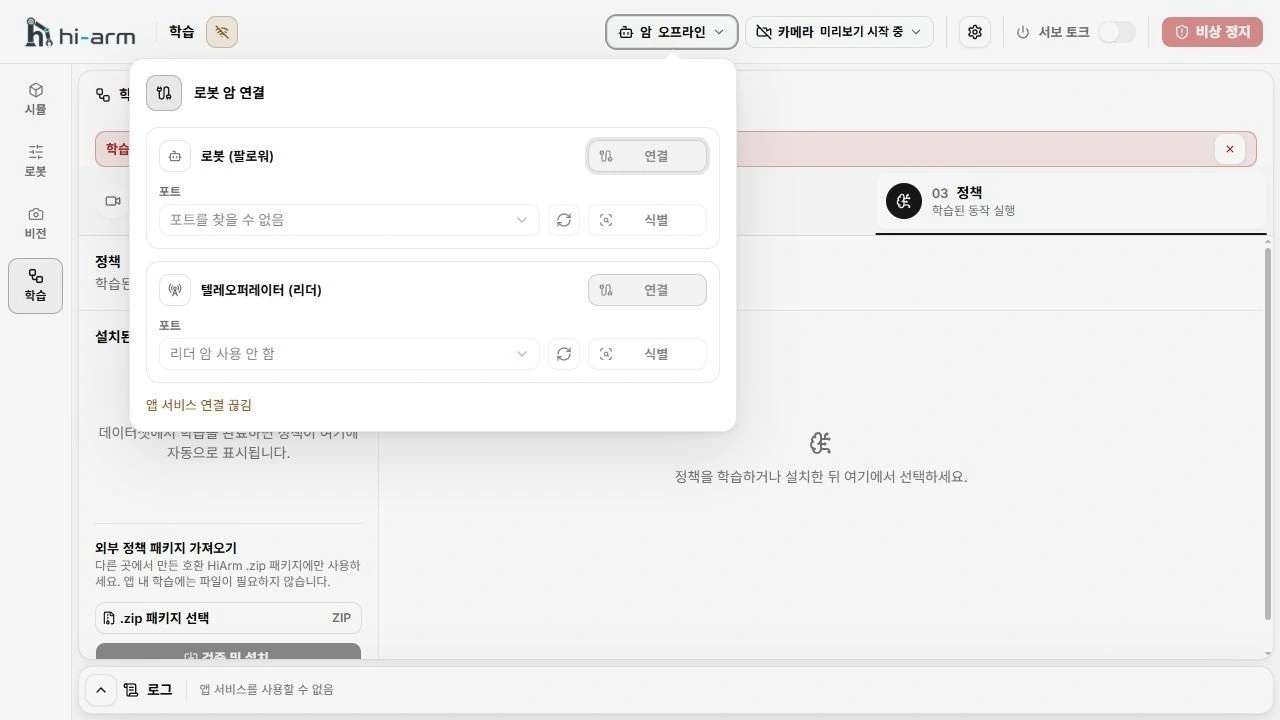
Connection-window example showing the follower and leader roles
Identify the port
Stop motion normally, support the arm, turn torque off, and check that it has actually relaxed before unplugging USB. Never identify a moving arm by disconnecting it. If its state is uncertain, use the physical cutoff as described in Safety.
- Select the arm status in the header to open Arm connections. Each role has a visible Port selector. Leave it on Auto-detect port and select Connect, or choose a known port before connecting.
- If USB identification instructions appear, follow them. If the cable is already connected, disconnect only that arm's USB cable, then reconnect the same cable. If it is disconnected, plug it in when asked. Leave the camera and other arm cables connected.
- Wait for identification. The app continues automatically when it finds the arm. If that role has no saved calibration, calibration setup opens. Check the displayed role and port.
- If automatic identification fails, select Cancel, choose the correct port in that role's Port selector, then select Connect. The port list refreshes automatically while this window is open.
Check each role
| Role | Checks |
|---|---|
| Follower | Check power, USB cable, and profile. Physical motion is blocked before calibration. |
| Leader | Confirm that it is relaxed. Do not force an arm that resists movement. |
Do not repeatedly retry a failed connection. Recheck power, USB cables, the port, and the profile role. If the app cannot confirm torque release, cut physical power.
Prepare a calibration profile for the connected assembly before moving it for the first time.
Profile and readiness
The app keeps one saved calibration for the follower and one for the leader and uses each automatically. The role row shows whether calibration is needed or saved. Recalibrate appears when that role already has a saved calibration.
For first-time leader setup, complete and save follower calibration first. Select Connect for the leader and follow the USB prompts. If no leader calibration exists, the app opens leader calibration after identification. Complete Leader calibration and save before normal connection.
If several saved calibrations exist for one role, the app blocks connection instead of choosing one. Recalibrate that role or import its matching calibration through Settings > Arm profile. Export any needed backup first; the new calibration replaces the saved calibration for that role.
A newly connected follower starts with torque off and is not motion-ready without valid calibration. Check the profile against the actual equipment configuration and homing settings. A matching name alone is not enough. After a motor replacement or reset, resolve mismatches through Calibration; do not force old values onto the device.