Before you start
Prepare a Windows 10/11 x64 PC with an internet connection. Installation and the first Simulator check do not require a robot. At school or home, work with a teacher or guardian.
The download is hi-arm-win-x64.zip. See the release notes for distribution details.
1. Extract the ZIP
- Find
hi-arm-win-x64.zipin Downloads. - Right-click the file and select Extract All.
- Open the extracted folder. The installer inside is
hi-arm-win-x64.exe.
Extract the ZIP before opening the EXE. If you downloaded an EXE directly from the official release, use that file. Do not change the ZIP file's extension to EXE.
2. Install the app
- Double-click the extracted
hi-arm-win-x64.exe. - Follow the installer instructions.
- Wait for the progress bar to finish. Do not close the window during installation.
If Windows shows a protection prompt
Confirm that the file came from the official Hirobot release. Stop if publisher or signature details differ from the distribution information, or if you cannot verify the source. Follow your school or company's installation policy. Do not turn off security protection or ignore a warning for a file whose source you cannot verify.
If the installer asks for Visual C++
The installer includes the Microsoft Visual C++ runtime. If it is missing, follow the setup prompt, approve the Windows administrator permission request if required, and wait for runtime installation to finish. App installation continues when the runtime is ready.
If setup asks you to restart Windows, restart and run the HIARM-TWIN-01 installer again. If runtime installation fails, check administrator permission or download the app installer again, then retry.
3. Launch and check the app
Double-click the desktop app icon or find Hi-Arm in the Windows Start menu. This is the HIARM-TWIN-01 shortcut name. Wait for the app service to become ready, then select Sim on the left.
The Simulator is open when both items appear:
- A 3D robot arm appears in the center.
- The Joints panel and joint sliders appear on the right.
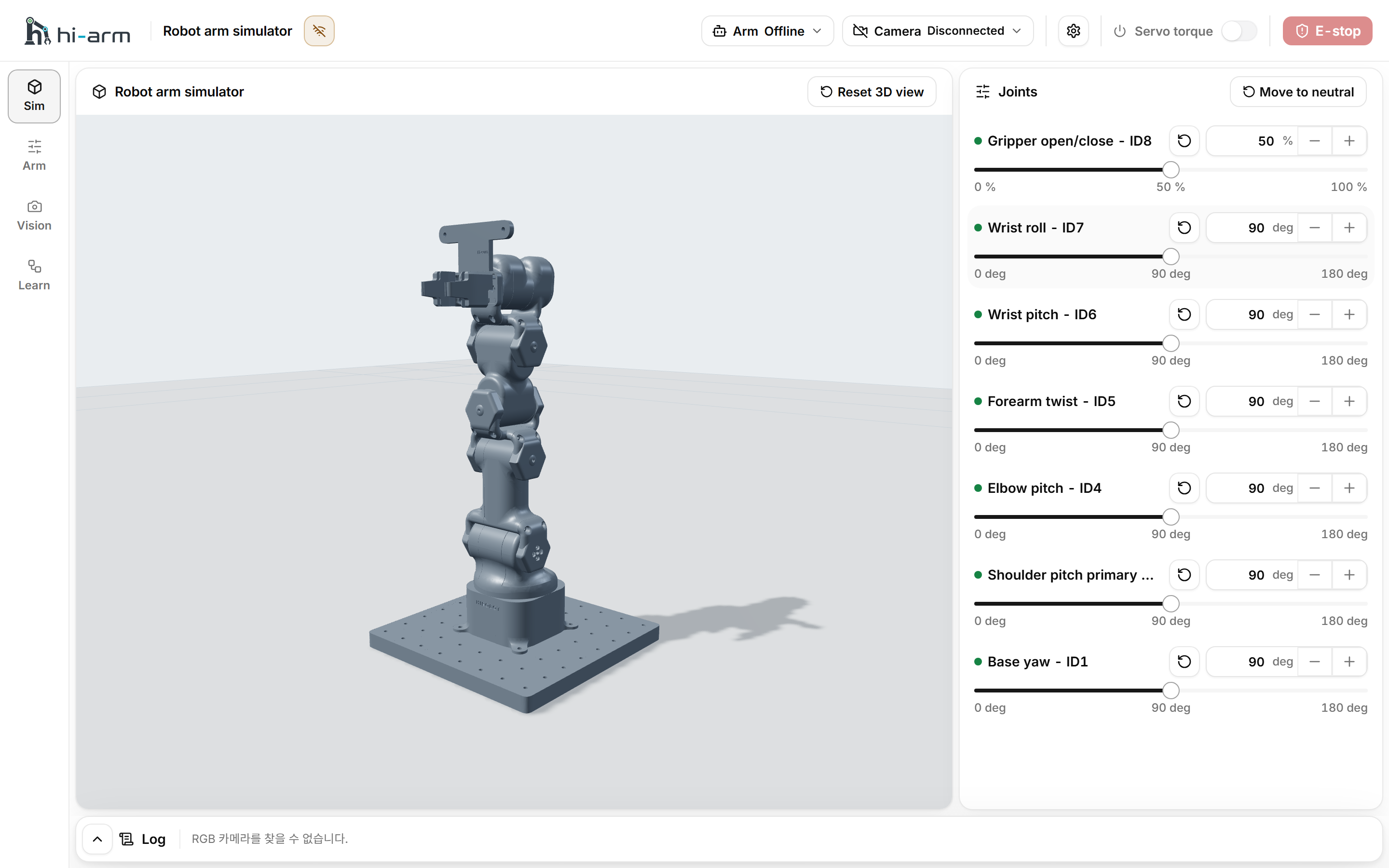
Simulator robot arm and Joints panel
Open Settings at the top to find the installed app version at the bottom.
Continue with the Simulator walkthrough, changing one joint by a small amount at a time. Before using a physical robot, prepare the equipment as described in Safety and Assembly and wiring.
If the app will not open
Search Windows for Hi-Arm. If it still will not run, download the installer again and reinstall. If you cannot verify a file or warning, stop and see Troubleshooting.
Do I need to install Python?
The app includes Python for normal app use, the Simulator, and policy training. You do not need to install Python separately.
Before your first training session, follow Learning setup. The app prepares the learning environment from its bundled Python and packages, without an internet connection.