Learning workflow
Demonstrate a task with the leader and record follower state and camera images as an episode. Review the episodes, train a policy, and begin testing with short movements.
Use 01 Collect → 02 Review & train → 03 Run policy in the Learn workspace. First read Safety and prepare the pair for Teleoperation.
Collection preparation
| Item | Required state |
|---|---|
| Task | Enter a short task sentence that will not change within an episode |
| Leader | Check connection, profile, and relaxed state |
| Follower | Check connection, calibration, and torque |
| Pair | Synchronize positions, then start following |
| Camera | Check the wrist color-camera preview |
| Work area | Enough space to perform the full demonstration safely |
Record an episode
- Under 01 Collect, enter a task, for example: Pick up the red block and place it in the tray.
- Prepare both arms and the camera. Check connections, torque, synchronization, and following state.
- Select Record episode. The app checks the camera and robot state.
- Use the leader to demonstrate the task slowly along a consistent path.
- Press Right Arrow or the finish button to end the episode.
- Wait for saving and camera cleanup to finish. Confirm that video and state data were saved.
- Stop following normally before opening 02 Review & train. Follow the Stop robot instruction if it appears.
Keep the starting pose, object placement, speed, and success criteria consistent. Record why a failed demonstration is excluded. If saving or cleanup fails, follow the recovery instructions and wait for confirmation. Closing a dialog does not mean cleanup has finished.
Review the dataset
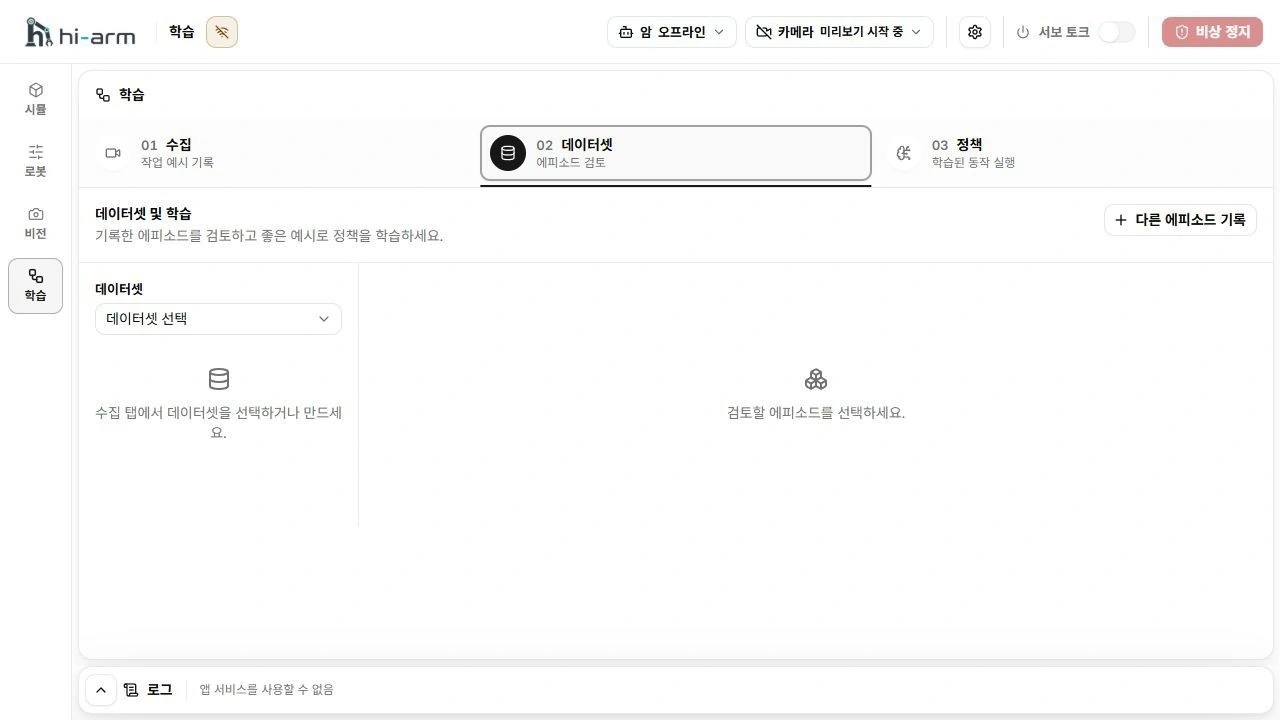
Dataset selector and episode review area
- Select a task and episode under 02 Review & train. Review next opens the next unreviewed episode; it does not mark the episode successful or rejected.
- Check that video and robot state match.
- Mark good episodes successful. Exclude unsuccessful episodes and record the reason.
- Select Check data before training and resolve any reported errors.
Export data is an optional way to save data for use outside the app, in LeRobot v3 format. In-app training prepares this data automatically.
Prepare the learning runtime
The Windows app includes the Python and packages needed for policy training. No separate Python installation or internet connection is needed for learning runtime setup. Prepare the learning environment once before your first training session.
- In 02 Review & train, select Install learning runtime.
- Wait while the app prepares its bundled Python, creates the learning environment, installs the included packages, and checks the runtime.
- Start training after setup completes. If setup fails, open Technical details, check the failed step and available disk space, and follow the displayed recovery action. If the bundled Python is missing or damaged, reinstall the app and retry setup.
Train a policy
- Select the validated dataset in 02 Review & train.
- Confirm that the learning runtime is ready, then select Train policy.
- Check progress and errors. Wait for the trained policy to become available.
- If you cancel, wait for cleanup to finish before starting another job.
Run a policy
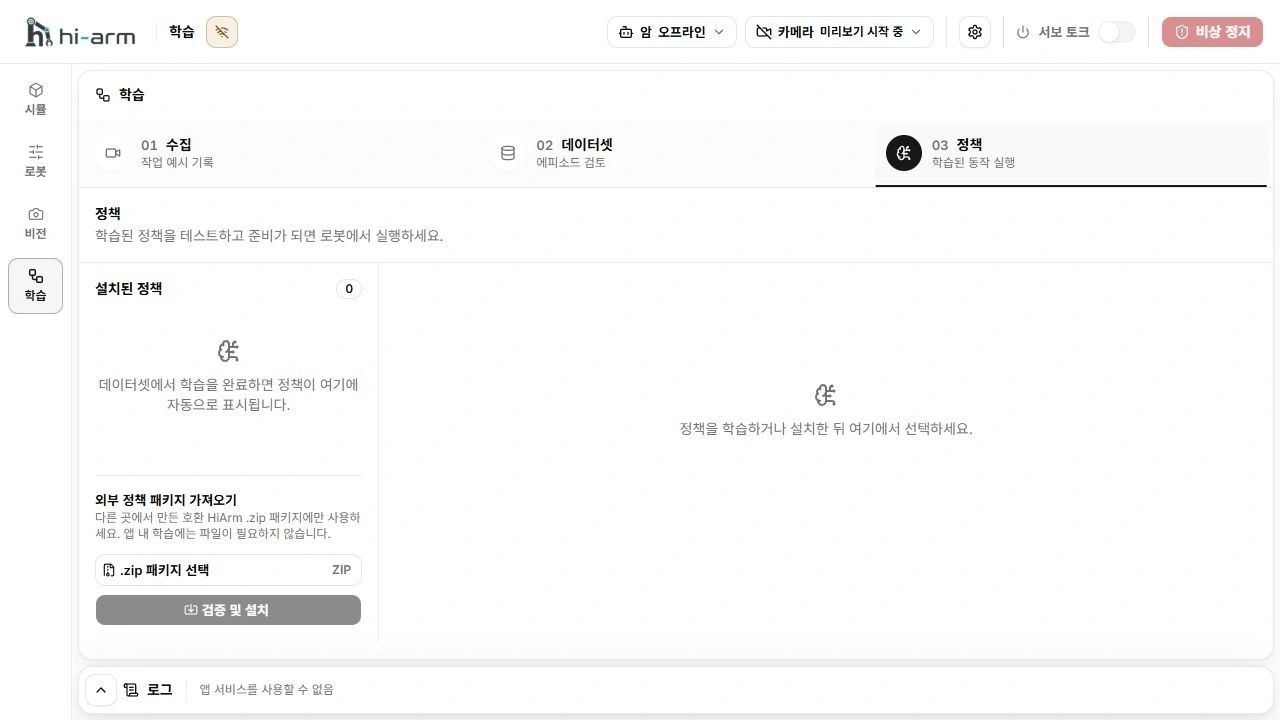
Installed policy list and policy-package import controls
- Open 03 Run policy and select the policy. Check its required devices.
- Select the CPU or CUDA dry-run mode and use Test inference. Use CUDA only when a compatible GPU and runtime are available. This test does not send movement commands to the robot. It does not confirm safety when using real equipment.
- Prepare the follower and camera. Check the profile, starting pose, and torque on every servo.
- Select Check live setup and resolve every failed check.
- Clear the work area. Select Run on arm, read the confirmation, then select Confirm and run. Start with one short task.
- Watch the physical robot throughout the run. Stop immediately if anything is abnormal.
A trained policy does not guarantee safety. Do not assume collision avoidance or person detection. Keep the physical power cutoff ready during execution.
After turning torque off, you need to prepare for execution again. Enable it safely and run Check live setup again before execution. After a normal policy stop, the follower can still hold its pose with torque. Follow Shutdown to support the arm and turn torque off.