The Simulator is a playground for moving the robot arm on screen. Drag the sliders to explore each joint's movement, then combine joints to create your own poses.
Before you start
Complete installation, then select Sim on the left side of the app. You can start without a physical robot or USB connection.
The central 3D view shows the robot arm. The Joints panel on the right contains a slider for each joint.
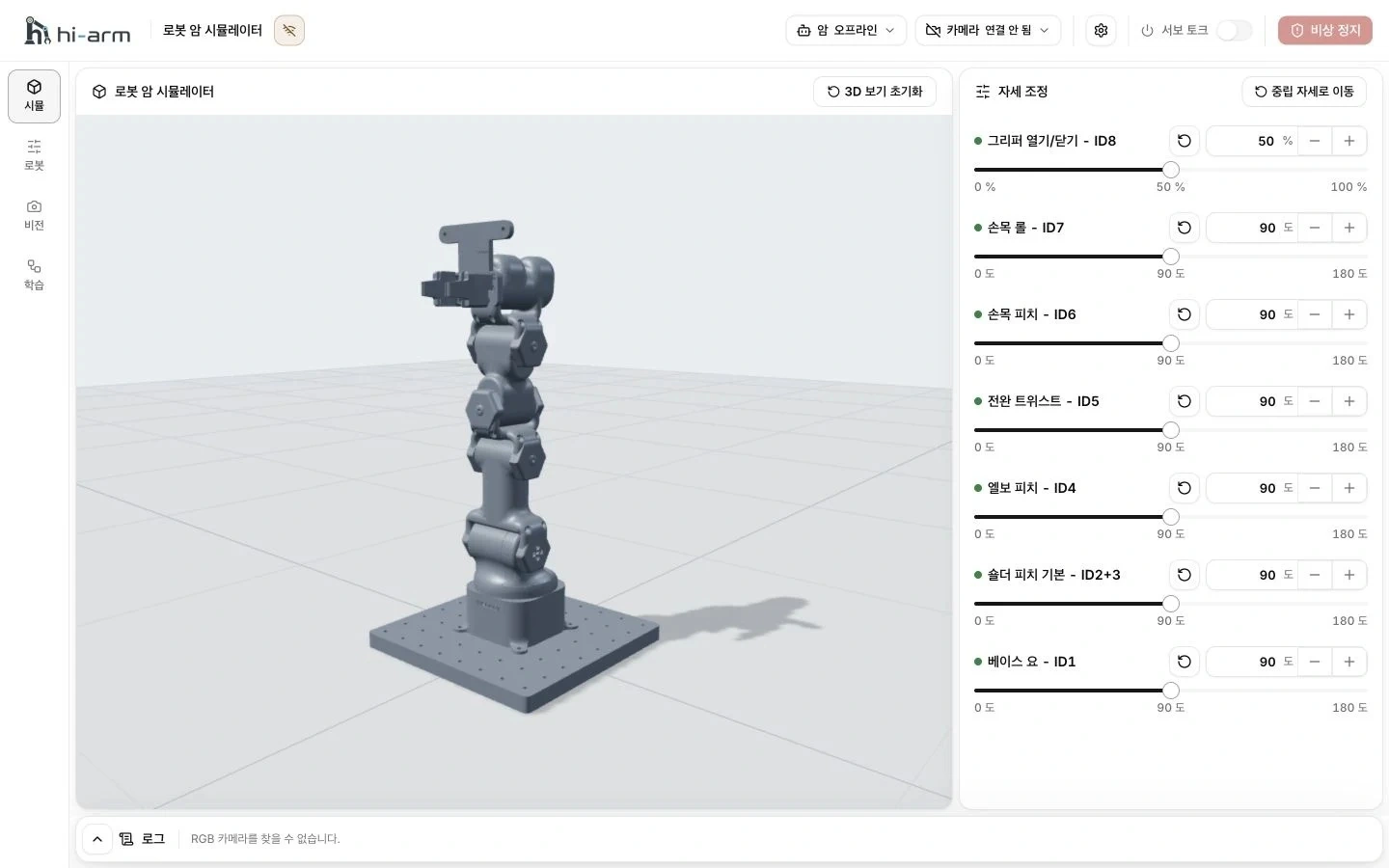
3D robot arm in the center and joint sliders on the right
Change the pose with sliders
- Find the joint you want to explore in the Joints panel.
- Drag its slider left or right.
- Watch the joint and the position of the arm's tip in the 3D view as you drag.
- Move other sliders to create the pose you want.
Start with one joint at a time to see what each joint does. Then combine joints to extend or fold the arm. Use the − / + buttons beside the displayed value for small adjustments.
Movements to try
| Movement | Sliders to use | What to explore |
|---|---|---|
| Turn the arm left and right | Base yaw | The whole arm rotates around its base. |
| Extend or fold the arm | Shoulder pitch primary, elbow pitch | Combine the two joints to change the height and reach of the arm's tip. |
| Change the wrist direction | Forearm twist, wrist pitch, wrist roll | Keep the arm's pose and change the gripper's direction. |
| Open and close the gripper | Gripper open/close | Watch the gripper fingers move apart and together. |
Make a pose, then move only the base. Next, leave the base in place and adjust the arm and wrist. The same joint can move the arm's tip differently depending on the other joints' positions.
Reset the pose or view
Use the reset controls when you want to start again. Resetting the pose changes the joints. Resetting the view changes the camera viewpoint.
| What you want to do | Control to use |
|---|---|
| Return one joint to its neutral position | Circular arrow button beside that joint |
| Return all joints to the neutral pose | Move to neutral in the Joints panel |
| Restore the viewpoint and keep the current pose | Reset 3D view in the 3D view |
Return to neutral and try another combination. Adjustments in the Sim workspace apply only to the robot arm on screen.